Gmail Ends POP3 Fetching and Gmailify Support
Google is shutting down Gmailify and web POP3 mail polling for external accounts. Archived mail stays untouched, and forwarding plus Send Mail As replaces both without missing messages.

For more than a decade, freelancers, small agencies, and longtime webmail holdouts relied on the same everyday convenience inside Gmail. You opened one browser tab on gmail.com, turned on "Check mail from other accounts" or linked a Yahoo or Outlook address through Gmailify, and let Google pull every outside inbox into one searchable place. Clients wrote to your domain, spam went straight into Google's quarantine, and nobody on the other end ever saw your underlying @gmail.com address.
That bridge is now on the clock. According to Google Account Help documentation, Google stopped accepting new Gmailify links and web POP3 fetch connections after the first quarter of 2026, and existing polling links will stop pulling mail altogether in January 2027. Waiting until client invoices bounce in February turns a fifteen-minute fix into an unnecessary fire drill.
What Stops Syncing and What Stays Safe
Nothing already sitting in your Gmail archive disappears when the cutoff hits. Google is shutting down the server-side polling pipes that reach out from gmail.com to fetch new copies from external mail servers, not deleting historical threads.
POP3 (Post Office Protocol version 3) always worked like a scheduled courier checking an outside mailbox every twenty to sixty minutes and pulling messages inward. Gmailify went a step further for Yahoo, Outlook.com, and AOL accounts by layering Gmail's spam filtering, inbox tabs, and faster alerts over third-party mail without changing your visible address. Both of those web-side bridges retire by January 2027.
Google's one-time "Import mail and contacts" tool stays available if you are closing an old inbox and just want a single historical copy copied over. Full Google Workspace accounts also keep their Data Migration Service for teams moving entire company domains onto Google.
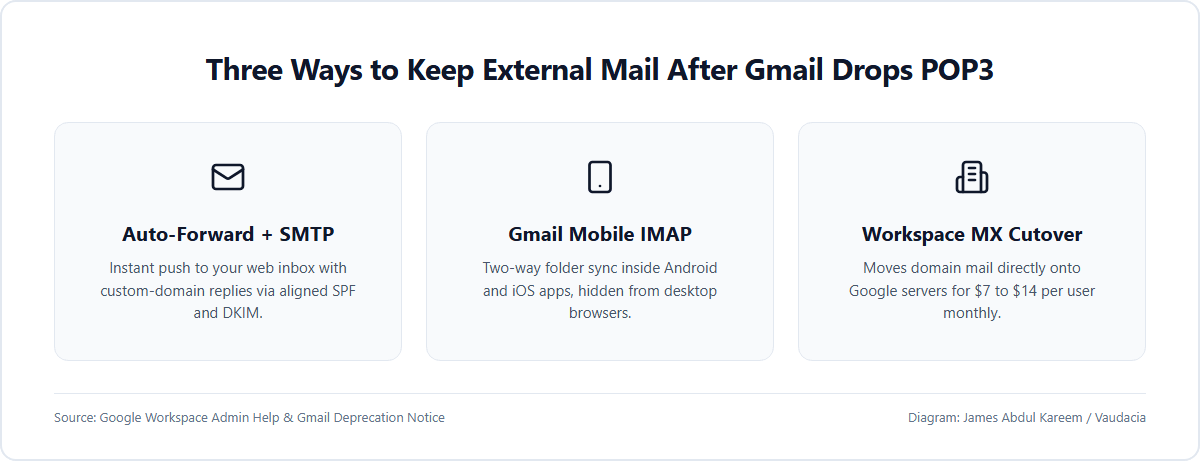
For day-to-day mail, the surviving replacement is automatic server-side forwarding at your domain host paired with Gmail's "Send mail as" SMTP option. Unlike POP3 polling, which forced Google's servers to store external passwords and dial out on a timer to thousands of aging mail hosts, server-side forwarding pushes each message the moment it arrives. That cuts out the half-hour lag that used to delay password-reset codes and time-sensitive replies.
Mobile IMAP vs. Desktop Gmail
It is easy to confuse the mobile Gmail app with what happens on gmail.com in a browser, and Google's cutoff treats the two very differently. Adding a Yahoo, Outlook, or custom-domain account via IMAP inside the Android or iOS Gmail app will continue syncing directly on that phone after January 2027.
The catch is that mobile IMAP never copies those messages into your Google cloud account. Open gmail.com on a laptop and none of that mail will show up in your search results or labels. Anyone who triages work email from a desktop browser still needs server-side forwarding configured at the source.
Setting Up Forwarding Without Losing Replies
Replacing POP3 comes down to two halves: routing incoming mail straight to Gmail from your source host, and keeping Gmail's outgoing SMTP connection active so replies go out under your real external address instead of leaking your personal @gmail.com line.
On custom domains hosted through cPanel, Hostinger, Namecheap, Fastmail, or Cloudflare Email Routing, log into your host's Forwarders or Email Routing panel and point your domain address at your primary Gmail inbox. Outlook.com users can switch forwarding on directly under Settings > Mail > Forwarding. Free Yahoo tiers are less predictable because Yahoo periodically gates automatic forwarding behind Yahoo Mail Plus; if your account blocks web forwarding, reading Yahoo via IMAP in the Gmail mobile app or a desktop client like Thunderbird keeps access open without paying for an upgrade.
Once inbound forwarding is active, verify how replies leave Gmail. On desktop, open Settings > See all settings > Accounts and Import and check the "Send mail as" section. If your external address is not listed there yet, add it with your host's SMTP server, TLS or SSL port (usually 587 or 465), username, and password, and leave "Reply from the same address the message was sent to" selected.
Keep authentication in mind when entering that password. Microsoft, Yahoo, and several privacy hosts reject standard account passwords over SMTP whenever two-factor authentication is enabled, requiring a dedicated App Password as modern session security moves away from static credentials toward passkeys and scoped OAuth tokens.
Send yourself a test email from a separate address before touching anything else. Once the message lands in Gmail within a few seconds and your reply arrives showing your domain address, go back to Accounts and Import and delete the old POP3 row under "Check mail from other accounts." Leaving both enabled side by side creates duplicate threads and messy read flags.
Avoiding the Hidden DMARC Spam Trap
There is one snag that catches people off guard after switching from POP3 to forwarding: raw email forwarding can break strict SPF and DMARC checks at banks and large software vendors.
Suppose a bank emails your custom domain, and a basic shared hosting server relays that exact message onward to Google. Gmail checks whether the shared host is authorized to send on the bank's behalf. Because it is not, strict DMARC policies can drop legitimate statements or security codes straight into Spam unless the relay uses Sender Rewriting Scheme (SRS) to re-sign the envelope cleanly.
Routing domain mail through modern edge forwarders such as Cloudflare Email Routing or Fastmail avoids most of those relay failures because they rewrite forwarding headers properly. During your first week on the new setup, adding a temporary Gmail filter that keeps messages addressed to your external domain out of Spam is cheap insurance while you confirm that bank alerts and invoices land where they should.
When Forwarding Is Enough vs. Moving to Workspace
For a solo founder or freelancer holding one legacy domain inbox, server-side forwarding plus Send Mail As costs nothing extra and keeps Gmail's search operators and labels working the way they always have.
Small teams sharing a support@ or billing@ inbox across several laptops, or onboarding contractors who need their own logins, outgrow that workaround fast. Consumer @gmail.com accounts hit outbound SMTP rate caps quickly, and shared passwords become a security headache. Moving DNS MX records straight onto Google Workspace and running its built-in IMAP migration clears every intermediate relay permanently.
What to Check After You Flip the Switch
Check whether your web host's control panel is still saving a duplicate copy of every forwarded email on disk. Many cPanel hosts default to "forward and keep a copy," and a 1 GB or 2 GB shared mailbox fills up over a few months of PDF attachments and starts bouncing client mail before anyone thinks to look.
If you route "Send mail as" replies through a third-party SMTP server rather than Google's own outbound relay, confirm that DKIM signing is switched on for your domain in DNS so corporate spam filters do not flag your invoices.
Finally, if you still have old threads sitting on a legacy POP domain you plan to let expire, run Gmail's one-time "Import mail and contacts" tool before the renewal date passes. That pulls the remaining archive into your searchable inbox so you can drop the old hosting bill without losing years of client history.
Comments (0)
No comments yet. Be the first to share your thoughts.